Card Printer Troubleshooting Common Issues: Quick Fix Guide
Table of Contents []
- Card Printer Troubleshooting Common Issues - Plastic Card ID
- Print Quality Problems: Why Your Cards Look Wrong
- Card Jams and Feed Errors: Diagnosing the Mechanical Side
- Encoding Errors: Magnetic Stripe and Smart Chip Issues
- Driver and Connectivity Problems: When the Printer Won't Respond
- Frequently Asked Questions: Card Printer Troubleshooting
- Choosing the Right Support Partner Makes All the Difference - Plastic Card ID
Card Printer Troubleshooting Common Issues - Plastic Card ID
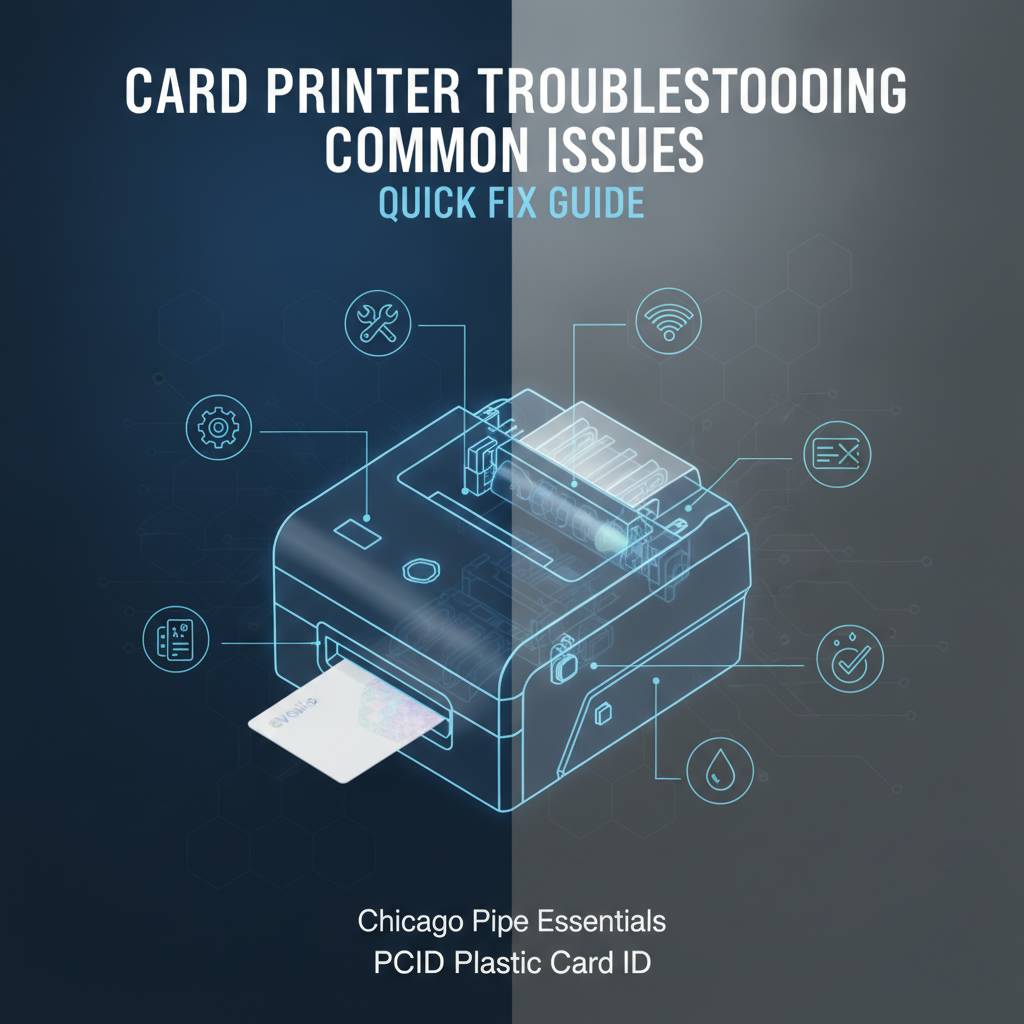 Something's off. The cards are coming out streaky, the ribbon snapped mid-job, or worse - the printer won't even recognize the media you loaded. If you've found yourself staring at a blinking error light and wondering what went wrong, you're not alone. Card printer troubleshooting is one of the most searched topics among in-house ID program managers, and for good reason: when your printer goes down, your entire card production stops cold.
Plastic Card ID has worked alongside more than 100,000 businesses across the United States, and in that time, the same problems come up again and again. The good news? Most issues have clear, fixable causes - and once you know what to look for, resolving them is far more straightforward than it might seem in the moment.
| Common Issue | Likely Cause | Recommended Fix |
|---|---|---|
| Faded or streaky print | Dirty printhead or wrong ribbon type | Run cleaning cycle, verify ribbon compatibility |
| Ribbon breaks or tears | Damaged ribbon cartridge or tension issue | Replace ribbon, check for debris in path |
| Card jams | Incorrect card thickness or dirty rollers | Check card spec, clean transport rollers |
| Encoding errors | Wrong card type or misconfigured settings | Verify mag stripe or chip card loaded correctly |
| Printer not recognized by PC | Driver issue or USB/network conflict | Reinstall driver, check connection settings |
| Blurry or misaligned print | Software settings or printhead positioning | Adjust print settings, recalibrate printer |
Print Quality Problems: Why Your Cards Look Wrong
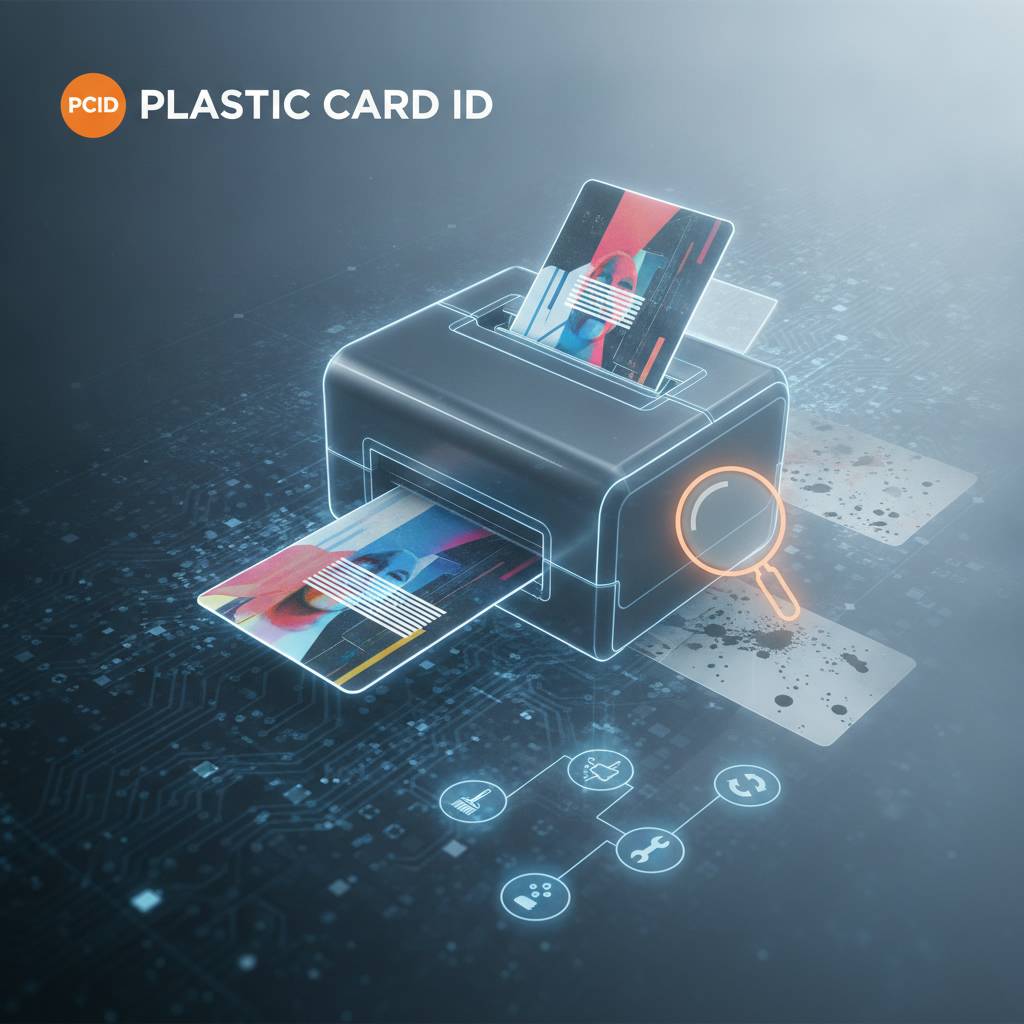 Print quality complaints account for a significant share of all card printer troubleshooting calls. When a finished card doesn't meet expectations - whether it's faded text, blotchy color panels, or white lines cutting through what should be a clean image - the root cause typically falls into a handful of predictable categories. Understanding which category applies to your situation is the fastest way to fix it.
The most important thing to recognize is that print quality is a system issue, not just a printer issue. The ribbon, the cards, the printhead condition, and the software settings all interact. Changing one variable affects the rest, which is why a methodical approach to diagnosis almost always beats random trial and error.
Printhead Contamination and Cleaning
The printhead is the most critical component in your printer, and it's also the one most sensitive to dust, skin oils, and card debris. Even microscopic contamination on the printhead surface translates directly to visible defects on the finished card - typically appearing as thin white horizontal lines running across the print area. Regular cleaning prevents this entirely.
Most Evolis, Fargo, Zebra, and Matica printers include a built-in cleaning cycle that uses a cleaning card to wipe the printhead and transport rollers simultaneously. Running a cleaning cycle every time you load a new ribbon is the single best habit you can build for maintaining print quality. Plastic Card ID stocks cleaning kits designed for each printer brand, so you'll always have the right materials on hand.
If cleaning doesn't resolve the streaking, the printhead itself may have sustained physical damage. Scratches or burned elements on a printhead require replacement - a procedure that varies by model but is typically straightforward with the right guidance from CPE.
Ribbon Compatibility and Handling
Not all ribbons are created equal, and using the wrong ribbon type for your print job is a guaranteed path to poor output. YMCKO ribbons (yellow, magenta, cyan, black, overlay) are the standard for full-color card printing. Monochrome ribbons are ideal for single-color applications like black-text ID cards and deliver far more prints per roll than color ribbons. Specialty ribbons exist for applications like scratch-off panels or metallic finishes.
Always verify that the ribbon you're loading matches your printer model exactly. A ribbon designed for an Evolis Primacy2 is not interchangeable with one designed for an Evolis Zenius, even though both are Evolis products. Mismatched ribbons cause feeding errors, panel misalignment, and in some cases, mechanical damage to the print mechanism. Plastic Card ID carries the full range of OEM-compatible ribbons for every printer in its lineup.
Handling matters too. Ribbons are sensitive to fingerprints and humidity. Always handle ribbon cartridges by the spool housing rather than touching the ribbon film itself. Store unused ribbons in their original packaging in a cool, dry location away from direct sunlight.
Card Stock Specifications
Your card stock has to meet the printer's requirements - full stop. Most desktop card printers accept standard CR80 PVC cards at 30 mil thickness. Feeding cards that are warped, dusty, or outside the acceptable thickness range causes a cascade of problems: jams, uneven printing, and ribbon damage. Always use cards rated for use with your specific printer model.
Textured or coated card surfaces that aren't designed for direct-to-card printing will reject dye sublimation ink - the result looks like a card that was barely printed on. If you're printing on cards with pre-printed backgrounds or security features, confirm that the surface is compatible with thermal dye sublimation before you load the hopper.
Card Jams and Feed Errors: Diagnosing the Mechanical Side
Card jams are frustrating, but they're rarely mysterious. The feed system is a mechanical process with defined tolerances, and when something falls outside those tolerances - whether it's a bent card, an overloaded input hopper, or a worn transport roller - the system protests. Knowing where to look saves time and prevents accidental damage from overly aggressive jam clearing.

When a jam occurs, resist the impulse to yank the card out forcefully. Most card printers have a manual card eject function or a card release mechanism specifically for this situation. Using it properly prevents damage to the transport rollers and the card path assembly. Check your printer's manual for the correct procedure, or reach out to CPE for model-specific guidance.
Input Hopper Loading and Card Warping
The input hopper is designed to hold a specific maximum number of cards - typically 100 cards for most desktop models, with expanded hopper options available for higher-volume units. Overloading the hopper increases friction and causes misfeeds that look like jams but are actually simple feed failures. Keep the hopper at or below its rated capacity and fan the cards before loading to prevent static-induced sticking.
Warped cards are a separate but related issue. Cards stored improperly - in hot vehicles, near heating vents, or in stacks under heavy weight for extended periods - develop a curl that prevents clean feeding. Store card stock flat, at room temperature, in a sealed container. If cards arrive warped from a supplier, they should be replaced rather than used, since the warp rarely flattens out enough to feed reliably.
Roller Wear and Debris
The transport rollers inside your card printer are the workhorses of the feed system. They grip each card and move it precisely through the print zone. Over time, the rubber surface of these rollers accumulates debris from cards - dust, PVC particulate, and ribbon residue - which reduces their grip and causes inconsistent feeding. A thorough cleaning with the appropriate cleaning cards resolves most roller-related issues.
If cleaning doesn't restore proper feeding behavior, the rollers themselves may be worn beyond useful service life. Roller replacement intervals vary by printer model and print volume, but rollers typically last tens of thousands of card passes before requiring replacement. High-volume operations using mid-range printers like the Evolis Primacy2 should monitor roller condition as part of routine maintenance.
Never use compressed air to clean the inside of a card printer. Unlike laser printers, card printers have components that can be dislodged or damaged by high-pressure air streams. Stick to cleaning cards and approved cleaning swabs.
Dual-Sided Printing Alignment
Dual-sided card printers - like the Evolis Primacy2 with its integrated flipper module - have an additional mechanical operation between the front and back print passes. Misalignment between sides is a common complaint and almost always traces back to either a calibration setting that has drifted or debris in the flipper mechanism itself. Running the printer's built-in alignment test card is the recommended first step.
If alignment remains off after calibration, check whether the flipper rollers are clean and whether any card debris has accumulated in the flip zone. Even a small fragment of a previous card can throw off the flip timing enough to produce visibly misaligned dual-sided prints.
| Printer Model | Typical Volume Range | Key Features |
|---|---|---|
| Evolis Badgy200 | Under 1,000 cards/year | Entry-level, compact, easy setup |
| Evolis Zenius | 1,000-3,000 cards/month | Single-sided, magnetic stripe option |
| Evolis Primacy2 | Up to 6,000 cards/month | Dual-sided, encoding upgrades available |
| Evolis Agilia | Premium edge-to-edge output | Highest image quality, full bleed printing |
| Matica Event Printer | High-speed on-site badge events | Fast throughput, event credential focused |
Encoding Errors: Magnetic Stripe and Smart Chip Issues
 Encoding failures are a different category of problem from print quality or feed errors - and they can be invisible until the card is actually tested in a reader. A card that looks perfect off the printer might carry garbled data, incomplete tracks, or no encoded data at all. For organizations running access control, hotel key cards, loyalty programs, or student ID systems, encoding reliability isn't optional - it's the entire point of the card.
Encoding issues typically trace back to one of three sources: the wrong card type loaded for the encoding module, a software or driver configuration problem, or a hardware issue with the encoder itself. Systematically ruling each one out is more efficient than guessing.
Magnetic Stripe Card Compatibility
Magnetic stripe cards come in multiple coercivity ratings - most commonly Low Coercivity (LoCo) at 300 Oe and High Coercivity (HiCo) at 2750 Oe. These are not interchangeable. Loading a HiCo card into a printer configured for LoCo encoding results in cards that appear encoded but carry no readable data - a frustrating failure mode that only surfaces when tested in a reader. Always confirm that the coercivity of your cards matches your printer's encoder settings.
Magnetic stripe positioning also matters. Cards loaded upside down or backward place the stripe in the wrong position relative to the encoder head, resulting in failed or partial encoding. Most card printers have clear orientation indicators on the input hopper, but it's easy to miss when you're loading cards quickly. Double-check stripe orientation every time you load a new batch of cards.
Smart Card and Chip Encoding Setup
Smart card encoding - whether contact chip or contactless RFID - requires compatible cards, the appropriate encoder hardware module installed in the printer, and correctly configured software drivers. If any of these three elements is mismatched, encoding fails silently or generates an error code. Verify all three before assuming the encoder hardware is at fault.
Driver configuration for smart card encoding is more complex than for magnetic stripe, and misconfigured middleware or outdated drivers are a frequent culprit in encoding failures. CPE recommends always using the latest manufacturer-supplied driver package and testing with a known-good card and a verified reader before concluding that the hardware is defective.
When to Call for Support
If you've verified card compatibility, confirmed correct orientation, updated drivers, and the encoding errors persist, it's time to involve the supplier. Encoder hardware can fail - particularly in high-volume environments or after a card jam that forced material through the encoding zone at an incorrect angle. Hardware replacement is typically a straightforward module swap on most supported printer models.
Reach out to 800.835.7919 when encoder issues persist beyond basic troubleshooting. The team at Plastic Card ID can help diagnose whether the issue is configuration-based or hardware-based and recommend the correct replacement module or repair path for your specific printer model.
Driver and Connectivity Problems: When the Printer Won't Respond
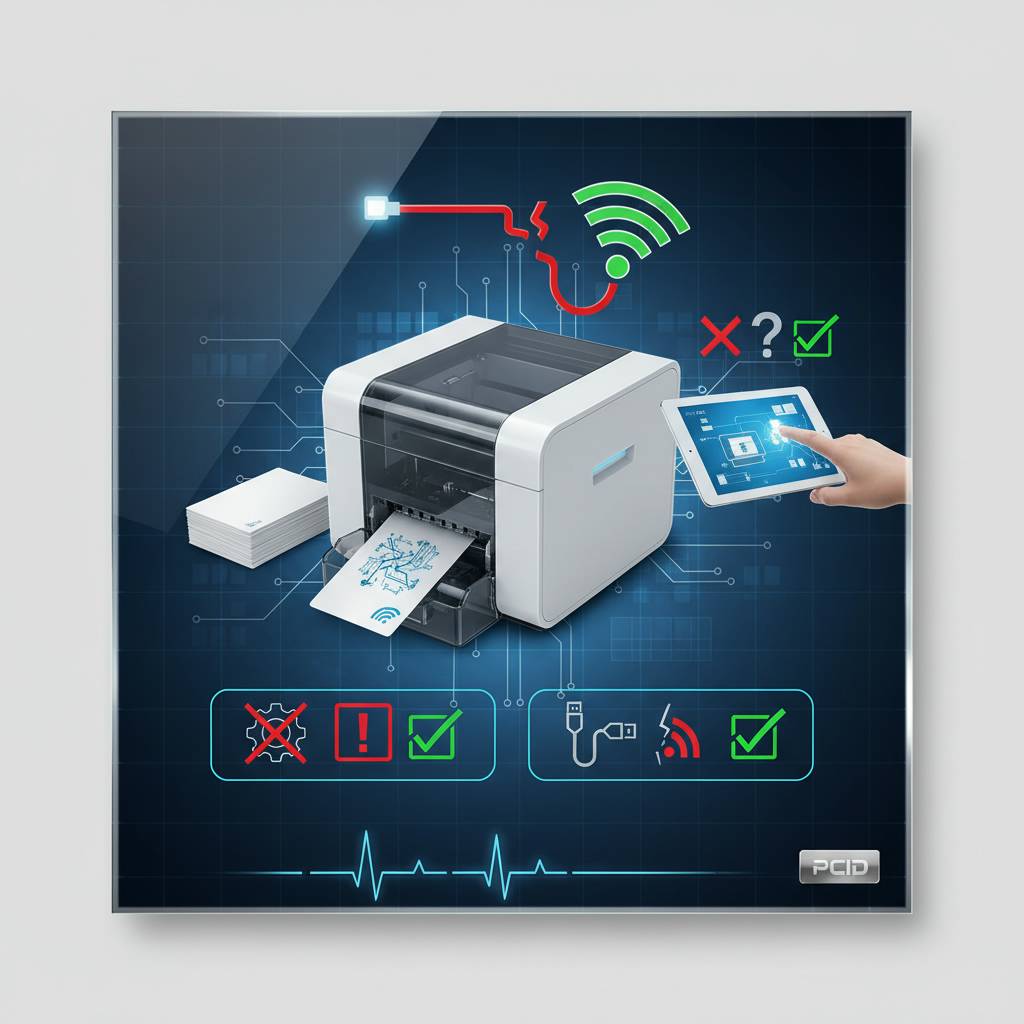 A card printer that won't communicate with your computer is effectively offline, even if the hardware itself is perfectly functional. Connectivity issues - whether USB, Ethernet, or Wi-Fi - and driver conflicts are a consistent source of frustration, particularly after operating system updates or when deploying a printer in a networked environment for the first time.
The starting point for any connectivity diagnosis is simple: confirm the physical connection first, then move to software. A loose USB cable or a network switch that dropped its connection accounts for more "printer not found" errors than most people expect. Once you've confirmed a solid physical connection, driver troubleshooting becomes the next logical step.
Driver Installation and Updates
Card printer drivers are specialized - unlike standard office printers, card printers from Evolis, Fargo, Zebra, and Matica each require manufacturer-specific drivers that enable access to features like encoding, lamination control, and print orientation. Generic or auto-installed drivers rarely work correctly and often result in limited functionality or outright failure. Always download the current driver directly from the manufacturer or from Plastic Card ID.
After any Windows update, verify that your card printer driver is still functioning correctly. Major OS updates occasionally break peripheral drivers, particularly for specialized hardware. A clean uninstall and reinstall of the card printer driver resolves the majority of post-update connectivity issues.
For networked printers, confirm that the printer's IP address is static or correctly registered in your DHCP reservation table. A printer that acquires a new IP address after a network restart will disappear from the print queue until the connection is re-established with the new address.
USB and Network Configuration
USB card printers should be connected directly to the host computer rather than through a USB hub. Hubs - particularly unpowered ones - can introduce power insufficiency or signal degradation that causes intermittent connection drops, which show up as random print failures or ribbon errors mid-job. Direct USB to a port on the host machine is always the preferred connection method.
For networked card printers in multi-user environments, printer sharing settings and firewall rules can block communication between workstations and the printer. If some users can print but others cannot, the problem is almost certainly a network permissions or firewall configuration issue rather than a hardware problem.
Firmware Updates and Their Role
Printer firmware governs how the hardware interprets commands, manages ribbon tension, processes encoding data, and reports errors. Outdated firmware can cause compatibility problems with newer drivers or operating systems and occasionally introduces bugs that didn't exist in earlier versions. Checking for firmware updates is part of a thorough troubleshooting process for persistent, unexplained errors.
Firmware updates are typically available through the manufacturer's website and are applied via a direct USB connection to the printer. Follow the update process carefully - interrupting a firmware update can leave the printer in an unrecoverable state. If a firmware update is needed and you're uncertain about the process, contact CPE for step-by-step support.
Frequently Asked Questions: Card Printer Troubleshooting
After supporting more than 100,000 card programs across the country, Plastic Card ID has fielded just about every troubleshooting question imaginable. The questions below represent the most common concerns from real users managing in-house card printing programs - from first-time buyers to experienced operators.
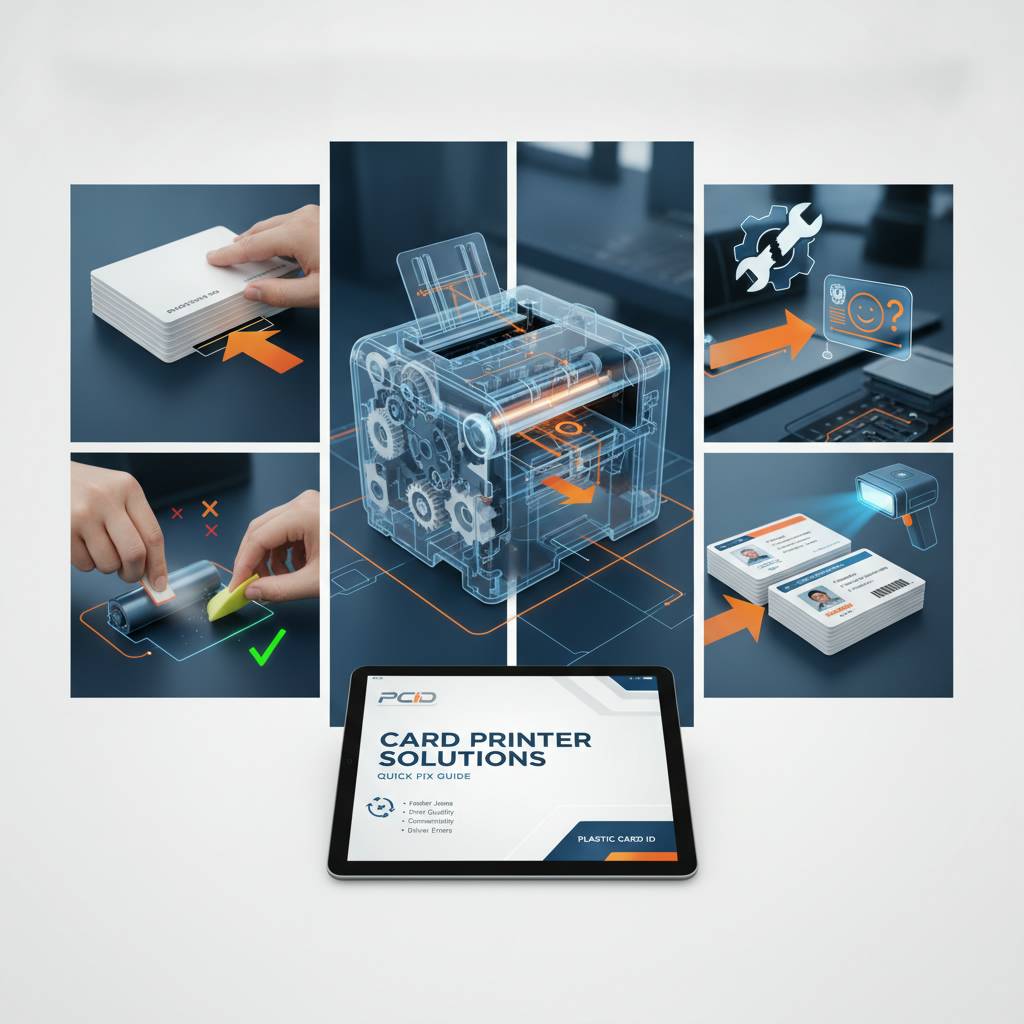
Whether you're running a small membership card program on an Evolis Badgy200 or managing a high-throughput employee ID operation with a Fargo or Zebra system, these answers apply broadly across printer brands and models.
How Often Should I Clean My Card Printer?
The standard recommendation is to run a cleaning cycle every time you load a new ribbon. For most printers, this means using a cleaning card - included in Plastic Card ID's cleaning kits - to wipe the printhead and transport rollers. High-volume operations may need more frequent cleaning. The Evolis Primacy2, for example, will actually alert you when a cleaning cycle is due based on card count.
Beyond the routine ribbon-change cleaning, a thorough cleaning every 1,000-2,000 cards is a smart practice. This involves cleaning cards, cleaning swabs for hard-to-reach areas, and inspecting the card path for debris. Consistent cleaning is the single most cost-effective maintenance habit you can establish - it extends printhead life, reduces jams, and maintains print quality over the long term.
Why Does My Printer Show an Error Code?
Error codes vary by manufacturer and model, but most fall into a few broad categories: ribbon errors (ribbon out, ribbon jam, wrong ribbon detected), card feed errors (jam, card not detected, feed failure), and communication errors (connection lost, encoding failure, command not recognized). Your printer's documentation maps each specific code to a cause and recommended action.
If the code isn't resolved by the action suggested in the manual, power-cycling the printer - turning it fully off, waiting 30 seconds, and restarting - clears many transient errors. Persistent error codes after a full restart indicate a hardware or configuration issue that warrants further investigation with CPE.
What Supplies Do I Need to Keep on Hand?
- Compatible YMCKO or monochrome ribbons matched to your printer model
- Cleaning cards and cleaning swabs for your specific printer brand
- A supply of properly specified PVC card stock in the correct thickness
- Overlay film or lamination pouches if your printer includes a lamination module
- Replacement ribbon cartridges in sufficient quantity to avoid production stops
- Any encoding-specific cards (magnetic stripe or smart chip) required for your application
- Card carriers or sleeves for protecting finished cards during distribution
Running out of supplies mid-production is an entirely avoidable disruption. Plastic Card ID stocks the full range of consumables for every printer brand it carries, making it straightforward to maintain a sensible inventory buffer without overstocking.
Choosing the Right Support Partner Makes All the Difference - Plastic Card ID
 Card printer troubleshooting is manageable when you have the right knowledge - and the right supplier in your corner. The issues covered in this guide, from printhead contamination to encoding failures to driver conflicts, are all solvable with the correct approach. What turns a minor setback into a major disruption is not having someone experienced to call when the standard fixes don't work.
Plastic Card ID has been that resource for businesses across the United States for more than 25 years. The team understands the full ecosystem of card printing - not just the hardware, but the ribbons, the cards, the encoding, the software, and the real-world demands of keeping a card program running reliably day after day. That depth of knowledge is what separates a true supply partner from a box-shipping vendor.
Dedicated Support for Every Printer Brand
Whether your operation runs on Evolis, Fargo, Zebra, or Matica equipment, Plastic Card ID carries the supplies and has the product knowledge to support it. This isn't a generalist approach - it's a focused, expertise-driven commitment to the card printing category specifically. You won't be talking to someone reading from a generic script when you call about a Fargo encoder issue or a Matica Event Printer feed problem.
Support extends beyond troubleshooting. Plastic Card ID helps customers evaluate whether their current printer is still the right fit for their volume and requirements, identify when it's time to add encoding capabilities or upgrade to a higher-throughput model, and ensure that their supply chain for ribbons and cards is optimized for their actual print schedule.
Contact Plastic Card ID directly at 800.835.7919 to speak with a knowledgeable representative about your card printer troubleshooting needs or any aspect of your card printing program.
Getting the Most From Your Card Printing Investment
The organizations that get the best long-term results from in-house card printing are those that treat their printer as the professional tool it is - maintaining it consistently, using manufacturer-approved supplies, and addressing issues promptly before they compound. A well-maintained card printer running the right supplies is a remarkably reliable piece of equipment capable of producing thousands of high-quality cards per month with minimal downtime.
The value of in-house printing - total control over card personalization, on-demand production, magnetic stripe and chip encoding, and no dependence on outside vendors - is only realized when the printer stays operational. Proactive maintenance and responsive troubleshooting are the two habits that protect that value. CPE is here to support both.
Ready to Resolve Your Card Printer Issues?
Don't let a fixable printer issue interrupt your card production longer than necessary. The troubleshooting guidance in this page covers the most common problems, but every setup is different - and sometimes the fastest path to a solution is a direct conversation with someone who knows these printers inside and out.
Plastic Card ID is ready to help. Call 800.835.7919 today and get your card printer back to peak performance. Whether you need supplies, a replacement part, or just expert guidance on a stubborn error, the team is standing by to assist you.
Card Printer Cost Per Card: Complete Price Breakdown
Previous Page