How to Replace Card Printer Ribbon: Step-by-Step Guide
Table of Contents []
- How to Replace a Card Printer Ribbon - A Complete Guide from Plastic Card ID
- Types of Ribbons and What Each One Does
- Step-by-Step: How to Replace a Card Printer Ribbon
- Ribbon Replacement by Printer Brand
- Common Ribbon Replacement Mistakes (and How to Avoid Them)
- Stocking Ribbons: How to Plan Ribbon Inventory for Your Card Program
- Ready to Keep Your Card Program Running Smoothly? Contact Plastic Card ID Today
How to Replace a Card Printer Ribbon - A Complete Guide from Plastic Card ID
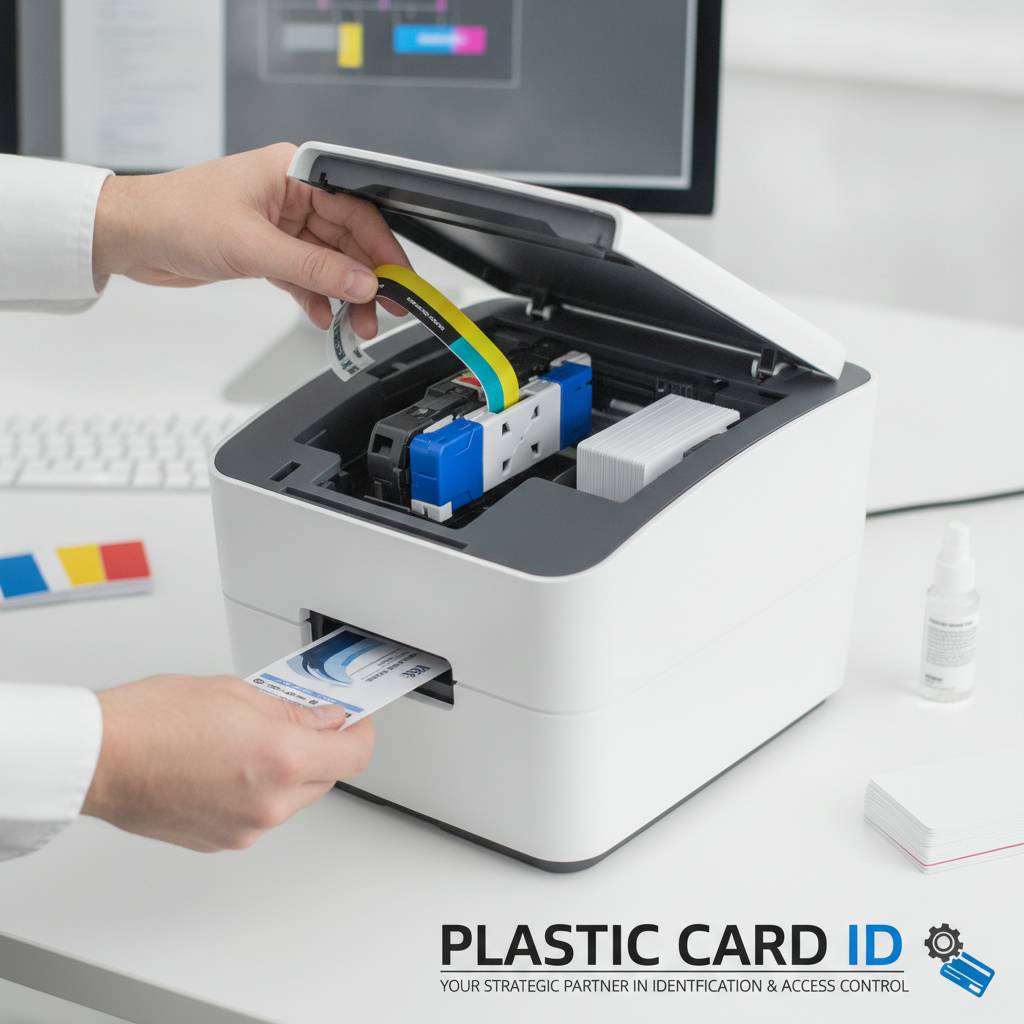 Replacing a card printer ribbon sounds straightforward - until you're standing in front of a machine mid-print run, the cards are coming out streaky, and you're not entirely sure which end of the ribbon spool faces which direction. It happens to experienced users and first-timers alike. Whether you just purchased your first printer or you've been managing an ID card program for years, knowing exactly how to replace a card printer ribbon cleanly and correctly makes the difference between professional results and wasted supplies.
Plastic Card ID has been supplying plastic card printers and ribbons to businesses across the United States for over 25 years, supporting more than 100,000 customers in industries ranging from healthcare and education to hospitality and corporate security. This guide walks you through everything: ribbon types, step-by-step installation, common mistakes, and how to keep your printer performing at its peak.
Why Proper Ribbon Replacement Matters
A misloaded or incompatible ribbon doesn't just produce bad-looking cards. It can jam the print head, damage the ribbon transport mechanism, or leave partial prints that create security vulnerabilities in access control programs. The ribbon is the heart of your card printer's output quality - treat it with care.
Print heads on professional card printers are precision components. They cost significantly more to replace than a ribbon cartridge. Loading your ribbon correctly every single time protects one of your printer's most valuable parts and ensures consistent, professional output across every single card you produce.
Understanding Ribbon Formats: Cartridge vs. Roll
Different printer brands use different ribbon formats. Some, like many Evolis printers, use a cassette-style ribbon cartridge where the supply and takeup spools are pre-loaded into a plastic frame. Others, like certain Fargo and Zebra models, use individual spool hubs that you load directly into the printer. Knowing which format your printer uses is the first thing you need to confirm before purchasing replacement ribbon.
Never try to force a cartridge-style ribbon into a hub-loading printer, or vice versa. They are not interchangeable. Always verify compatibility with your specific printer model when ordering ribbons from CPE, and keep your printer's model number handy when placing orders.
Tools You'll Need (Hint: Almost None)
One of the genuinely pleasant things about replacing a card printer ribbon is that you don't need tools. No screwdrivers, no special equipment. All you need is the correct replacement ribbon for your printer model, clean hands (seriously - oils from your skin can contaminate the ribbon panel surface and cause print defects), and about two minutes of your time.
Some printers also prompt you to run a cleaning cycle after a ribbon change. Having a cleaning card or cleaning kit on hand means you can complete the full maintenance process in one go. Plastic Card ID carries cleaning kits for all major printer brands, making it easy to keep everything in one order.
Types of Ribbons and What Each One Does
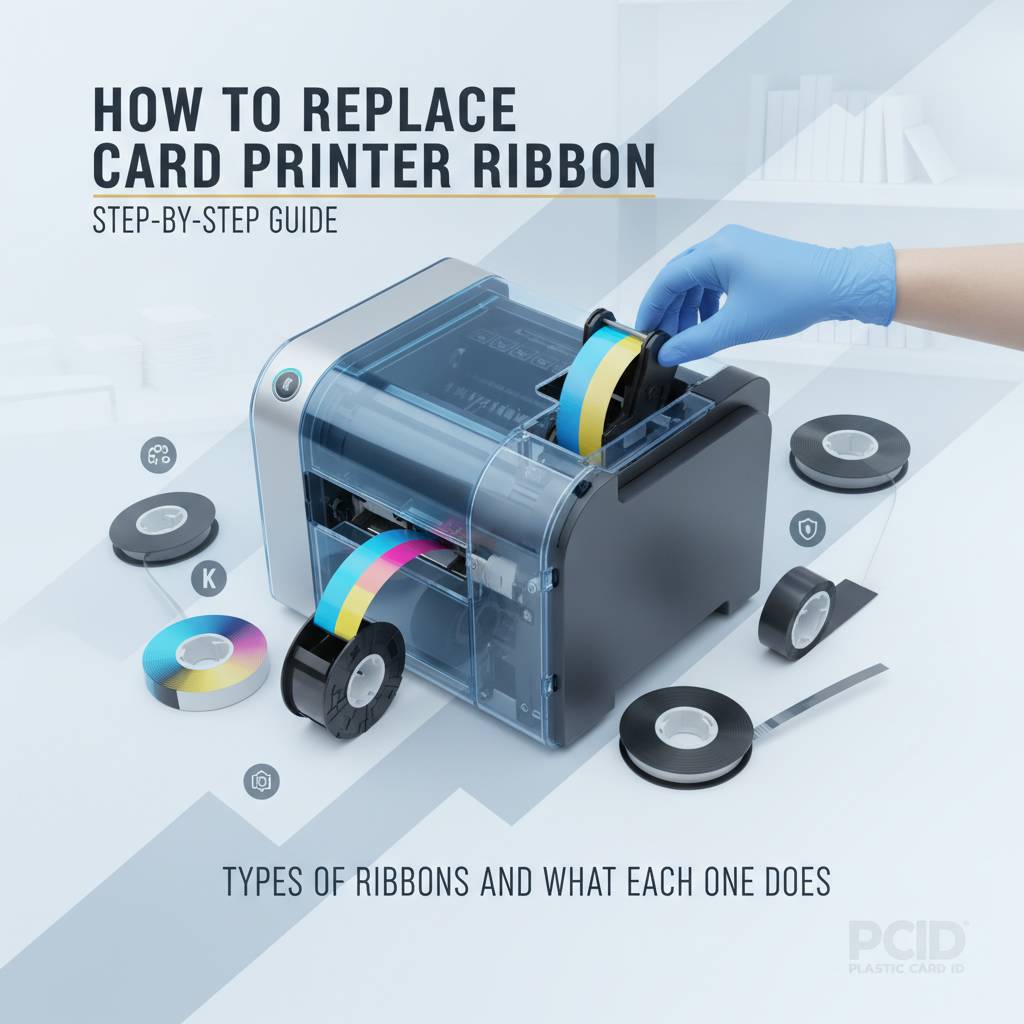 Before you replace your ribbon, you need to make sure you're replacing it with the right type. Ribbon selection isn't just about compatibility - it's about matching the ribbon to your specific card application. Load a monochrome ribbon when your printer expects a YMCKO panel ribbon, and you'll either get an error or cards printed in a single color when you expected full-color output.
| Ribbon Type | Best Use | Typical Cards Per Ribbon |
|---|---|---|
| YMCKO (Full Color) | Photo ID, membership, loyalty cards | 200-500 cards |
| YMCKOK (Dual-Sided Color) | Access control, employee ID with back printing | 200-400 cards |
| Monochrome (Black, White, Gold, Silver) | Text-only cards, loyalty stamps, simple badges | 1,000-2,000 cards |
| KO (Black Overlay) | Black text with protective topcoat | 500-1,000 cards |
YMCKO Ribbons: The Full-Color Workhorse
YMCKO stands for Yellow, Magenta, Cyan, Black, and Overlay. This five-panel ribbon produces full-color photographic images and text, then applies a clear protective overlay panel to seal the print. It's by far the most commonly used ribbon type in ID card programs, membership card production, and loyalty card printing. If your cards need to look polished and professional, YMCKO is almost certainly what you want.
The overlay panel in a YMCKO ribbon adds a crucial protective layer that resists scratches, UV fading, and minor abrasion. For employee ID cards that get clipped to lanyards and handled daily, this protection significantly extends card lifespan. Cards printed without an overlay tend to fade or scratch within weeks of regular use.
Monochrome Ribbons: High Volume, Low Cost
When you don't need color - think simple loyalty punch cards, basic visitor badges, or access control cards where an encoded magnetic stripe matters more than a photo - monochrome ribbons dramatically reduce your per-card cost. A single monochrome ribbon can often produce 1,500 or more cards, compared to 250-500 cards from a YMCKO ribbon.
Monochrome ribbons come in black (most common), white (for printing on dark card stock), gold, silver, red, and blue. Specialty colors add a custom, branded touch to cards without the complexity of full-color printing. Organizations printing simple, high-volume card runs benefit enormously from switching to monochrome where color isn't required.
Specialty Ribbons: When Standard Isn't Enough
Some applications call for ribbons beyond the standard lineup. Scratch-off ribbons allow organizations to print concealed PINs or codes directly onto cards. Holographic overlay ribbons apply a security hologram during the print process, adding a layer of anti-counterfeiting protection that's especially valuable for student IDs, government access badges, and high-security employee credentials.
Matching the right specialty ribbon to your security requirements can eliminate the need for costly post-print lamination or manual overlay application. CPE stocks specialty ribbon options for all supported printer platforms, so you can source everything in one place and keep your card program running without delays.
Step-by-Step: How to Replace a Card Printer Ribbon
The process varies slightly across printer brands and models, but the fundamental steps are consistent. The instructions below cover the general procedure applicable to most desktop card printers from Evolis, Fargo, Zebra, and Matica. Always cross-reference with your specific printer's user manual for model-specific guidance.
Step 1 - Open the Printer and Remove the Old Ribbon
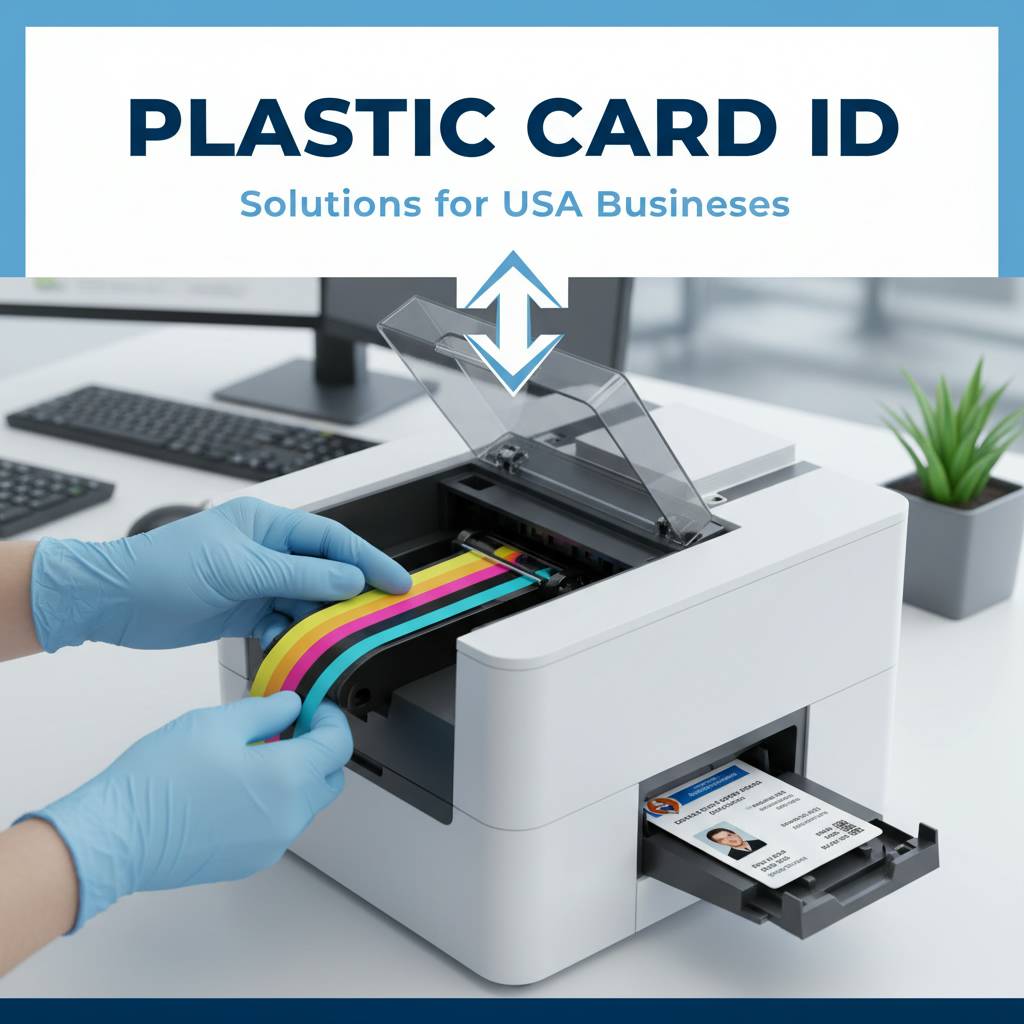
Start by turning off or pausing your printer. Most card printers have a top-loading or side-loading access panel. Press the release button or latch (typically located on the top or side of the unit) and open the printer lid. You'll see the installed ribbon cartridge or spools sitting in the print carriage. Grasp the cartridge firmly by the frame and pull it straight up or out, depending on your printer's orientation.
If you're working with a hub-style printer, you'll remove each spool independently. Note the direction of ribbon travel before removing both spools - the ribbon must wind in the correct direction during installation or you'll get errors or blank cards. Take a photo with your phone if you're unsure, so you have a reference for reinstallation.
Step 2 - Prepare and Install the New Ribbon
Remove the new ribbon from its packaging. If it's a cartridge-style ribbon, most of the work is done - simply align the cartridge with the guides inside the printer and press it firmly into place until it clicks. If your printer uses individual spools, thread the ribbon from the supply spool through the print head channel and onto the takeup spool, following the threading diagram printed inside your printer's lid or included in the manual.
Before closing the lid, gently advance the ribbon by hand to remove any slack. A loose ribbon can bunch at the print head during the first card cycle, causing a jam. Most cartridge-style ribbons require no manual advancement - the printer initializes the ribbon automatically when the lid closes and the printer powers up.
Step 3 - Run a Test Print and Cleaning Cycle
After installing the new ribbon and closing the printer lid, run a test print using your card design software or the printer's built-in test function. Check the output for consistent color saturation, clean edges, and proper panel alignment. Uneven color panels or streaks often indicate the ribbon isn't fully seated or is tracking incorrectly.
Following a ribbon change, it's good practice to run a cleaning card through the printer. Cleaning cards remove debris, ribbon residue, and dust from the print head and card transport rollers - elements that accumulate over a full ribbon cycle. Incorporating a cleaning cycle into every ribbon change routine extends print head life and keeps output quality consistently high.
Ribbon Replacement by Printer Brand
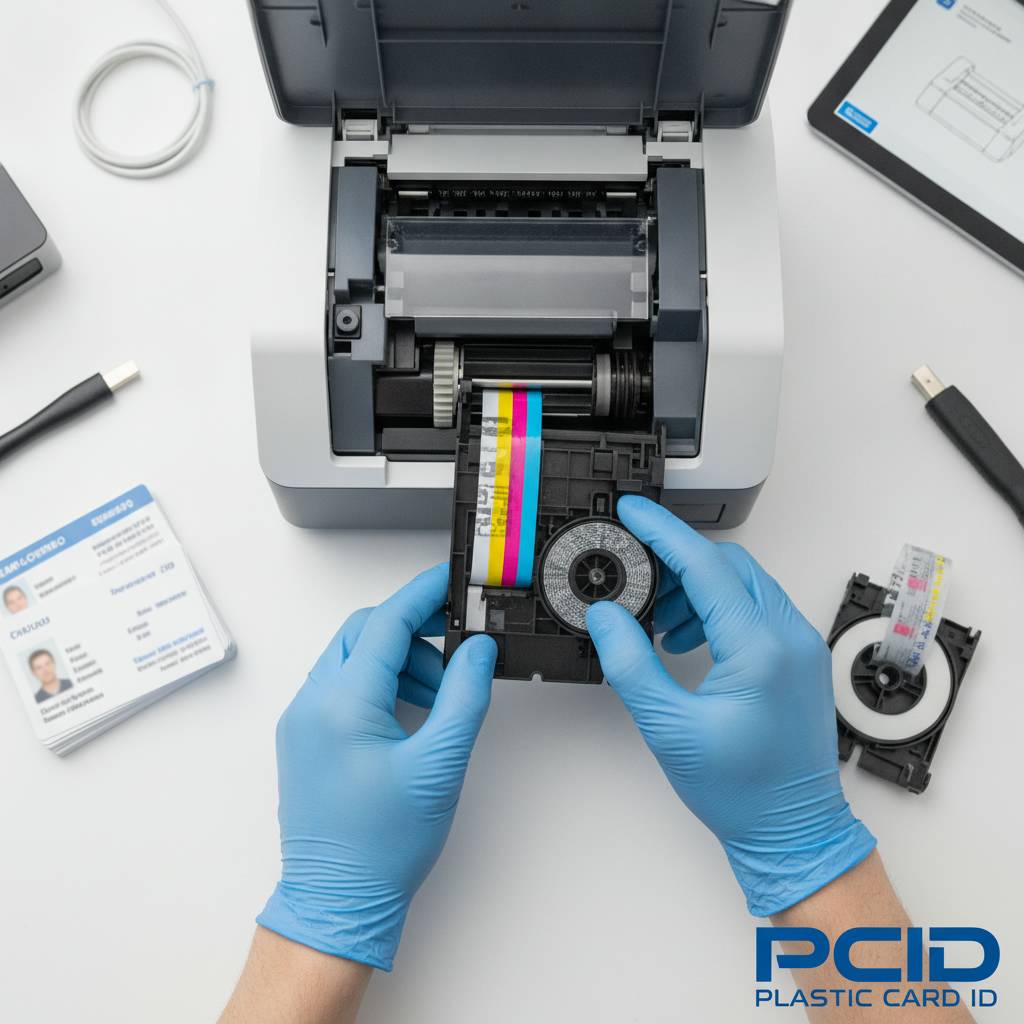 While the core process is consistent, each printer brand has design nuances worth knowing. Evolis printers, for instance, are celebrated for their user-friendly cartridge system that makes ribbon replacement intuitive even for staff members who haven't done it before. Fargo and Zebra systems tend to use a slightly more hands-on approach that rewards familiarity with the specific model.
Evolis Printers: Badgy, Zenius, Primacy2, and Agilia
Evolis ribbon cartridges are some of the easiest to change in the industry. The Badgy200, designed for organizations printing fewer than 1,000 cards per year, uses a color ribbon cassette that simply drops into place and clicks. The Primacy2, a mid-range workhorse handling 1,000 to 6,000 cards per month, uses the same intuitive cassette approach with a few additional ribbon type options to match its expanded capabilities.
The Evolis Agilia, Plastic Card ID's top-tier recommendation for organizations demanding edge-to-edge premium output, supports advanced ribbon options including holographic overlays. Its ribbon replacement follows the same cassette logic but requires confirming the ribbon type setting in the printer driver software to ensure the machine recognizes the newly installed ribbon correctly.
Fargo and Zebra Printers: Security-Focused ID Programs
Fargo HDP printers - popular in government, law enforcement, and corporate security environments - use a cartridge-style ribbon but also incorporate a separate film roll for their retransfer printing process. When replacing consumables in an HDP printer, you're replacing both the ribbon and the retransfer film. These are two distinct components and both must be current for the printer to function correctly.
Zebra card printers use a ribbon cassette system similar to Evolis but with Zebra-specific cartridge shapes. Zebra printers are widely used in healthcare and education environments and are known for their durable, reliable performance. Contact Plastic Card ID at 800.835.7919 if you're unsure which Zebra ribbon format your specific model requires - their team can match ribbon to printer in moments.
Matica Event Printers: High-Speed Badge Production
The Matica Event Printer is engineered for on-site, high-speed badge printing at conferences, trade shows, sporting events, and large-scale credential programs. Its ribbon system is designed for rapid changeover - minimizing downtime when you're printing hundreds of credentials per hour under live event pressure. Speed and reliability under load are where the Matica platform truly separates itself from standard desktop units.
When replacing ribbons in a Matica Event Printer, the process still follows the same foundational steps, but attention to ribbon tension is particularly important given the machine's high throughput speeds. A slightly loose ribbon that would go unnoticed in a low-volume desktop unit can cause misfeeds or print errors at event-printer speeds. Always advance manually and confirm tension before closing the print module.
Common Ribbon Replacement Mistakes (and How to Avoid Them)
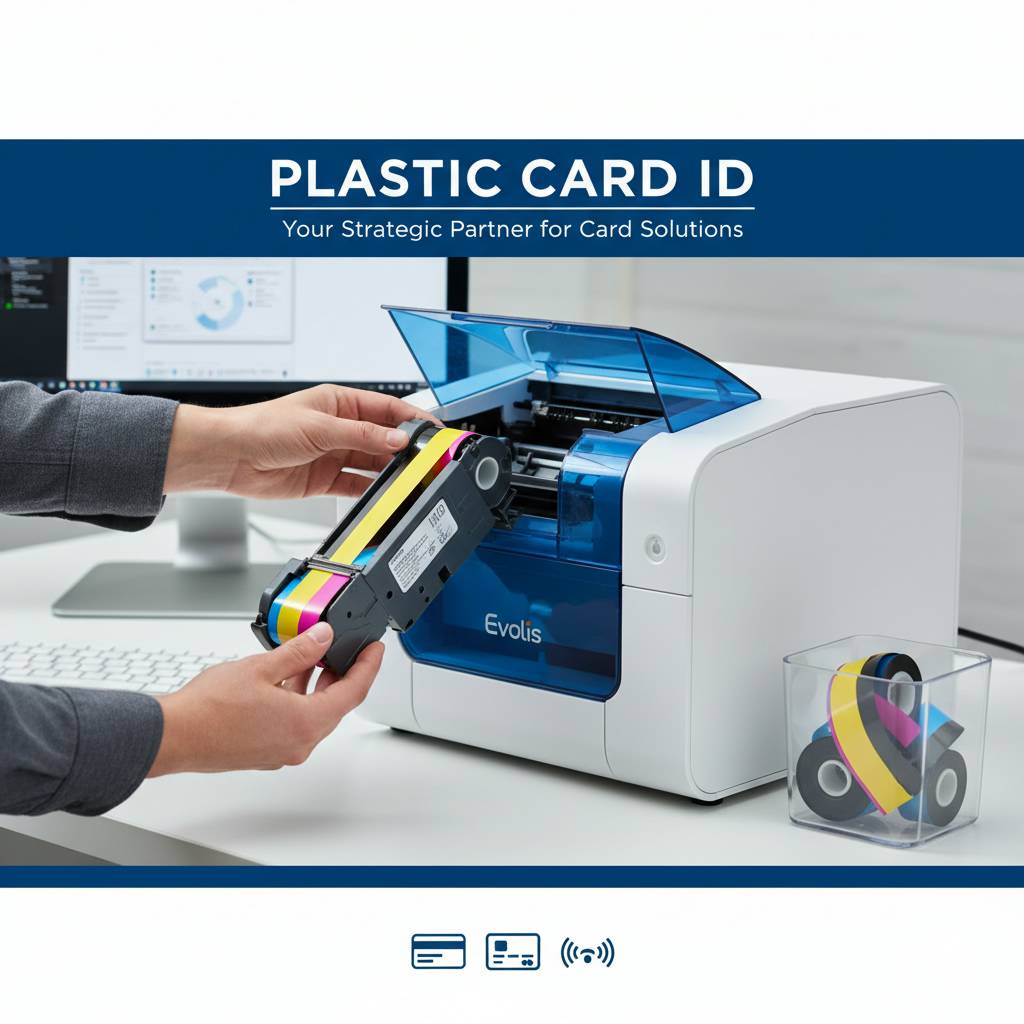 Even experienced users make ribbon replacement errors from time to time. Knowing the most common pitfalls in advance lets you sidestep them cleanly. The mistakes below account for the vast majority of post-replacement print problems that CPE technical support teams encounter.
Mistake 1 - Using an Incompatible Ribbon
This is the most common error. A ribbon from a different printer brand or series may physically fit into a cartridge slot but produce errors, blank cards, or damaged prints. Always verify ribbon compatibility using the printer's model number, not just the brand name. An Evolis Primacy ribbon is not the same as an Evolis Badgy ribbon, even though both come from the same manufacturer.
When ordering ribbons through Plastic Card ID, filter by your exact printer model to ensure you're getting a verified compatible product. Keeping a note of your printer model number posted near the machine eliminates this mistake entirely.
Mistake 2 - Touching the Ribbon Panel Surface
The color panels on a YMCKO ribbon are extremely sensitive. Fingerprints leave oils that transfer to the print head and card surface, creating visible smudges, color voids, or adhesion failures. Handle ribbon cartridges by the plastic frame only, and if you need to thread a spool-style ribbon manually, touch only the plastic hub cores - never the ribbon film itself.
If you're in a high-traffic print room where multiple staff members handle ribbons, consider posting a simple instruction card near the printer. One contaminated ribbon panel can ruin an entire batch of cards and waste both time and supplies.
Mistake 3 - Skipping the Post-Change Cleaning Cycle
- Print head residue from the previous ribbon can contaminate the new ribbon's first few panels.
- Roller contamination causes card feed problems and streaking unrelated to ribbon quality.
- Dust accumulation on the print head between ribbon changes is a primary cause of white horizontal lines in printed cards.
- Most printer warranties and service agreements require documented regular cleaning as a condition of coverage.
- A cleaning kit from Plastic Card ID typically costs far less than a service call or print head replacement.
Running a cleaning card after every ribbon change is one of the simplest, highest-impact maintenance habits a card program operator can adopt. It takes under two minutes and meaningfully extends the lifespan of your printer's most expensive components.
Stocking Ribbons: How to Plan Ribbon Inventory for Your Card Program
Running out of ribbon mid-project is frustrating in ways that are entirely preventable. Smart ribbon inventory management means your card program operates without interruption, your staff aren't waiting on deliveries, and you're not paying premium prices for expedited shipping when urgency hits. Plastic Card ID makes it straightforward to keep your supply chain organized with a full catalog of ribbons for all supported printers.
Calculating How Many Ribbons You Need
Start with your monthly card volume. If you're printing 500 employee ID cards per month using a YMCKO ribbon that yields 250 cards, you need a minimum of two ribbons per month just to meet production demand. Factor in test prints, card reprints from encoding errors, and seasonal spikes - new employee onboarding cycles, academic enrollment periods, annual membership renewals - and you'll likely want a buffer of 20-30% above your baseline calculation.
Establishing a par stock level for ribbons means you always reorder before you run out, not after. Most organizations settle on a 60-90 day supply as a comfortable buffer, depending on their storage conditions and budget cycle flexibility.
Storage Tips to Maintain Ribbon Quality
Ribbon shelf life is real. Store ribbons in a cool, dry location away from direct sunlight and heat sources. Extreme temperature swings cause the ribbon film to expand and contract, potentially leading to wrinkling or delamination that causes print defects even with a brand-new ribbon. Most card printer ribbons should be stored between 59-77 degrees Fahrenheit in moderate humidity conditions.
Keep ribbons in their original packaging until use. The packaging protects against dust and humidity. A ribbon stored carelessly in an open environment can degrade months before its technical expiration date, creating waste and unpredictable print quality right when you need consistent results most.
Contact Plastic Card ID to Set Up Your Ribbon Supply
Need help matching ribbons to your specific printers or estimating annual ribbon requirements for your card program? The team at Plastic Card ID has been doing exactly this for over 25 years, across more than 100,000 customer accounts nationwide. They know the nuances of every printer in their lineup and can help you build a smart, cost-effective supply arrangement.
Reach CPE directly at 800.835.7919 to discuss your ribbon needs, ask compatibility questions, or place an order for ribbons and cleaning supplies. There's no complicated process - just straightforward expert guidance from people who know card printing inside and out.
Ready to Keep Your Card Program Running Smoothly? Contact Plastic Card ID Today
 Replacing a card printer ribbon doesn't have to be a guessing game. With the right ribbon, the right technique, and a consistent cleaning routine, your card printer will deliver professional, reliable output card after card, year after year. Whether you're running a small desktop printer for occasional visitor badges or managing a high-throughput ID program printing thousands of cards per month, the fundamentals covered in this guide apply directly to your workflow.
Plastic Card ID supplies professional-grade ribbons, cleaning kits, and all supporting consumables for Evolis, Fargo, Zebra, and Matica card printers - everything your program needs to operate without interruption. Their team brings over 25 years of hands-on expertise to every customer interaction, and with more than 100,000 satisfied customers across the United States, they have the experience to back it up.
Call Plastic Card ID now at 800.835.7919 to order ribbons, get compatibility guidance, or explore the full range of card printing supplies available for your printer model. Your card program deserves the right supplies, delivered by people who genuinely know the product.
Entry-Level vs High-Volume Card Printers Compared
Previous Page